Helmert Transform
Apply a Helmert transformation to the drawing.
|
Icon |
Command |
Shortcut Key |
Toolbar |
|
|
TRANSFORM |
|
Drawing |
The Helmert transform requires at least three common points between the old and the new coordinate systems. You can input up to 100 common coordinates.
Procedure
- You are asked:

-
All - All the points, lines and polylines/polygons in the drawing will be exported.
-
Visible - Only the visible points, lines and polylines/polygons in the drawing will be exported.
-
Selected - Only the selected points, lines and polylines/polygons in the drawing will be exported.
-
Select the option you require and click Enter
 .
. - You are prompted to:

- Click Yes to identify the transformation points graphically. Alternatively, click No to type in a list of the transformation points.
Identify Transformation Points Graphically
-
Click Yes.
- You are prompted to:
Indicate point 1 on old system (right-click to cancel)
-
Indicate a known point on the old coordinate system.
- You are prompted to:
Indicate the same point on the new system
-
Indicate the position of the point in the new coordinate system.
-
You are prompted for a minimum of three sets of coordinates.
-
Continue to indicate coordinates in the old and new system respectively, and then right-click when you are finished.
- In the context menu, select Finish to move to the next step or Quit to terminate the function.
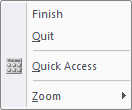
- The Transformation point Confirmation window displays.
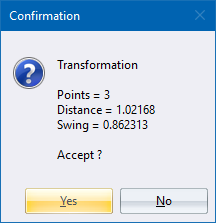
Click Yes to continue or No to terminate the function.
- If you accept the settings, the transform parameters display in an Information window.
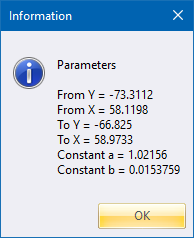
These are the actual parameters that will be applied during the transformation.
- Click OK to continue. The drawing is transformed.
Indicate Transformation Points by Keyboard
-
Click No.
-
The Transformation Coordinates table displays.
- Input the coordinate sets as shown below. You must input a minimum of three sets of coordinates.
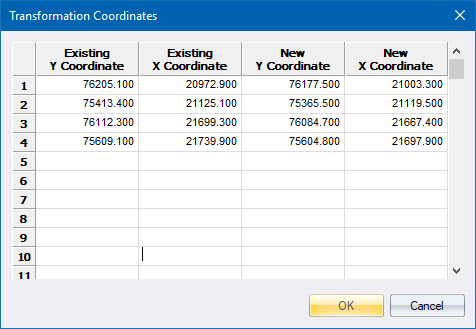
- Click OK to complete the transform, or Cancel to terminate the function.