Icon
Command
Shortcut Key
Toolbar

CONTROLCENTRE
Misc
Display the Control Centre.
Icon |
Command |
Shortcut Key |
Toolbar |
|
CONTROLCENTRE |
|
Misc |
This function allows you to display the Control Centre, which displays information about the following objects in the drawing:
Layers
Line styles
Text Styles
Dimension Styles
Multiline Styles
Hatch Patterns
Blocks
Named Views
Named DPs
You can toggle the visibility of drawing layers by right-clicking the Visibility icon.
Procedure
The Control Centre displays in it's last position.
It can be freestanding or attached to the left, right, top or bottom of the drawing area by clicking on it's Title Bar and dragging it to the required position.
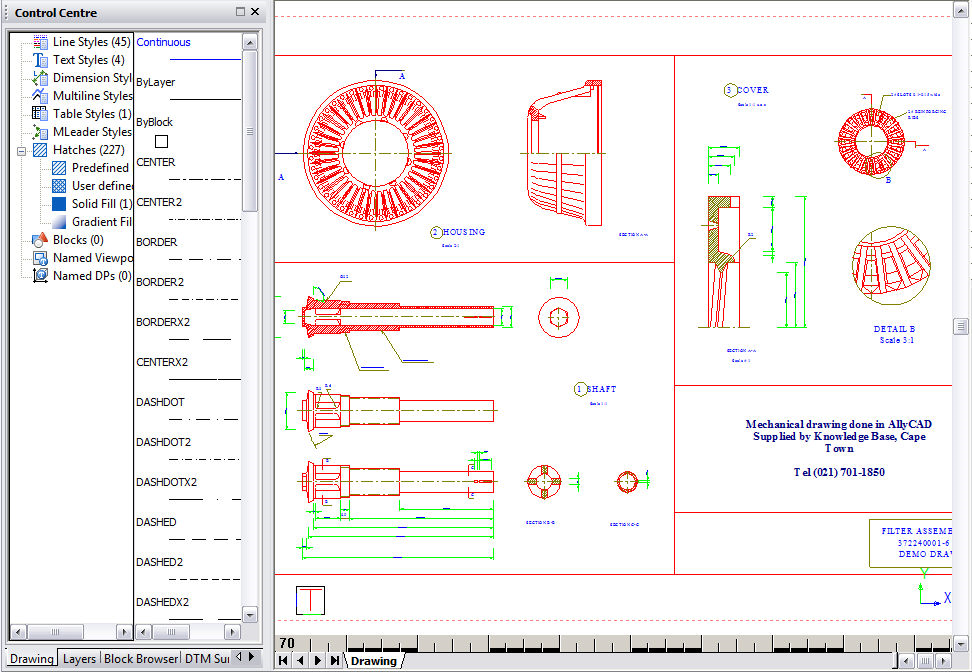
The Drawing tab displays the information of all the style objects in the drawing:
Line Styles
Text Styles
Dimension Styles
Multiline Styles
Table Styles
Multileader Styles
Hatch Patterns
Blocks
Named Viewports
Named DPs
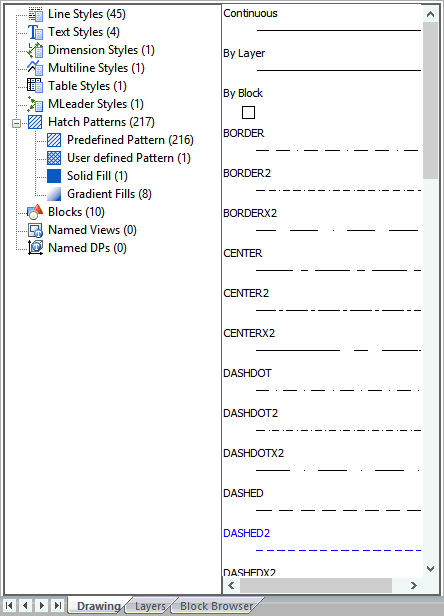
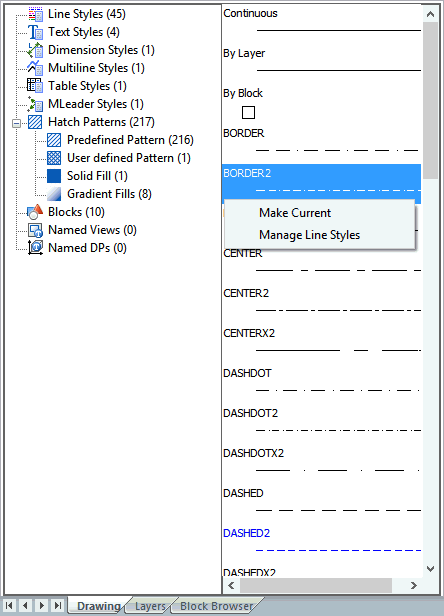
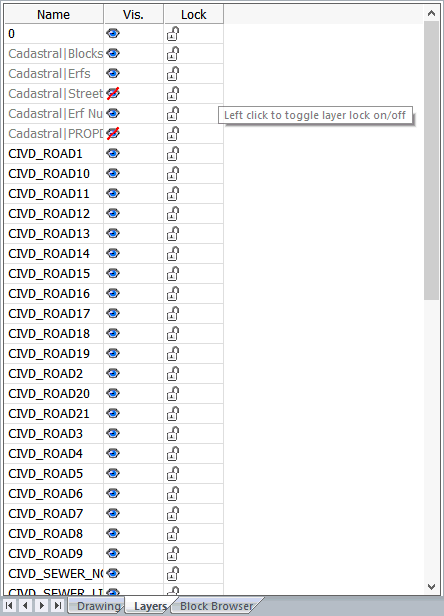
Layer visibility and lock status can be changed by clicking on the relevant icon in the list.
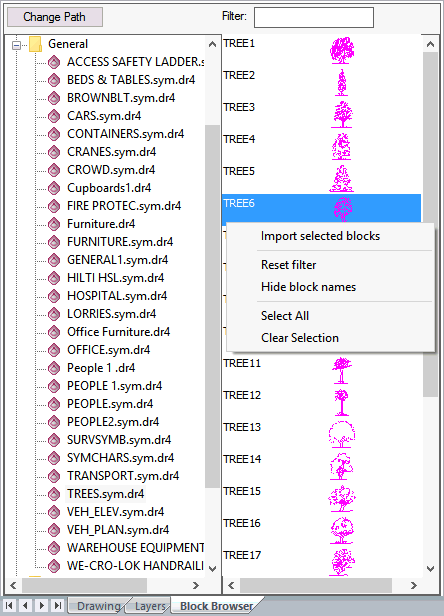
Click a block file in the left pane to list all the blocks in that file.
Right-click a block in the right-hand pane to display a popup menu with these options:
Import Selected Blocks - Add the selected blocks to the current drawing.
Reset Filter - Clear the current block name filter.
Hide Block Names - Hide the names of the blocks in the list.
Select All - Select all the blocks in the list.
Clear Selection - Make sure no blocks are selected.
If you want to browse blocks from a different folder, click Change Path to select a new root folder for the Block Browser. The folders and DR4 files under the new root folder will be displayed in the Block Browser folder tree in the left pane.
If you select a new root folder, the Change Path button will change to Reset Path. Click Reset Path to reset the root folder back to its default location - "AllyCAD 2D Symbols" folder.
If a large number of blocks are listed in the right pane, you can use the Filter option to display only blocks whose names begin with the characters you enter in the Filter input box.
 The block name filter stays active even if you select a different symbol
file. Remove the filter by deleting all the characters in the Filter
input box, or right-click and select Reset
filter.
The block name filter stays active even if you select a different symbol
file. Remove the filter by deleting all the characters in the Filter
input box, or right-click and select Reset
filter.
To indicate CAD/Road Strings target entities for an extraction section, click on the appropriate spreadsheet icon.
In the Target entities dialog, specify if you want to extract from CAD entities or Road entities.
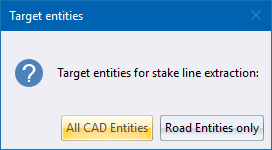
Click Road Entities only and follow the same process of selecting road strings as per the Extract Strings function.
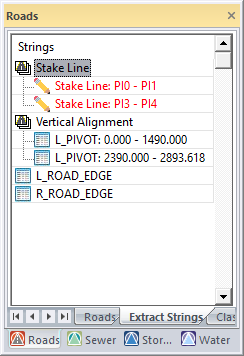
The red stake line extraction sections indicate that you need to recalculate. Right-click and select Road Recalculate.
When you select a Stake Line extraction section, the target entity will be highlighted.
Right-click the Vertical Alignment node and select the Add Extraction range option to display the following bar:

Enter the start and stop chainage of the vertical extraction range you would like to add and click OK. Alternatively, click on the respective Indicate buttons to graphically indicate the chainage.
Civil Designer will add VPIs into the Vertical Alignment definition for the extraction range. Bear in mind that extraction ranges are not allowed to overlap with existing vertical curves.
Once the extraction ranges have been added, you can click the Spreadsheet icon to indicate the target entities.