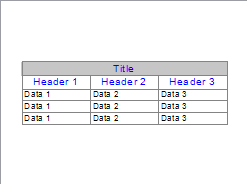
Use this window to manage table styles in the drawing.
|
Option
|
Description |
|
List |
Displays a list of the table styles in the drawing. Click a table style name to select it. |
|
Sample |
Displays what the table would look like in the drawing.
|
|
Add button |
Click to add a new table style. Settings for the new style are copied from the currently selected style. |
|
Remove button |
Click to remove the table style from the drawing. Only available if the style is not in use in the drawing. |
|
Import button |
Import a table style from another drawing. |
|
Table Properties |
|
|
Alignment column |
Select the alignment for text entries from the dropdown list. |
|
Text Style column |
Select the text style from the dropdown list. |
|
Text Height column |
Enter the height of text entries in drawing units. This can only be changed if the text style has a 0 height, otherwise the height specified in the text style will be used. |
|
Text Colour column |
Select the colour for text entries. Click this cell to display the Colour Selection. |
|
Grid Colour column |
Select the colour for the grid lines. Click this cell to display the Colour Selection. |
|
Fill Colour column |
Select the colour for the row background fill. Click this cell to display the Colour Selection. |
|
Cell Margins |
|
|
Horizontal margin |
Specify the left and right margin (blank space), in drawing units, for all table cells. |
|
Vertical margin |
Specify the top and bottom margin (blank space), in drawing units, for all table cells. |
|
Table options |
|
|
Show title row |
Select this checkbox to include the title row in the table. |
|
Show header row |
Select this checkbox to include the header row in the table. |
|
Bottom to top |
Select this checkbox to have the table title and header at the bottom of the table |
|
Current text height units |
Set the units of the table text. The options are:
|
|
Apply button |
Click to apply elements of the selected style to existing table entities. |